Dynamics GP Add-In for Microsoft Word fails to load solution
After installing Dynamics GP Add-in for Microsoft Word, the buttons do not show up on the developer bar within word so I had to find a solution.

You must have the following installed to use the Word Add-In for Dynamics GP Word Template editing.
- Microsoft Dynamics GP Add-On for Word
- Open XML SDK 2.0 for Microsoft Office
You must also have the Word developer tab shown basic debugging info is in the post here:
Word Templates in Dynamics GP (installation and admin)
Installing a new developer windows workstation and everything went super quick until I got to installing Dynamics GP Microsoft Word Templates Add-in, where I experienced issues with the installer. The installer wanted to elevate and run as an admin. Giving it credentials then caused it to freeze the install. I assume it wanted user input, requiring an admin Powershell to kill process.
I logged in as admin to windows, but office 365 is not registered to that admin user, so going back to standard user, the AddIn was not showing up in Word.
However I did see the vsto files were in the program files folder as they should be
C:\Program Files (x86)\Microsoft Dynamics\Report Templates
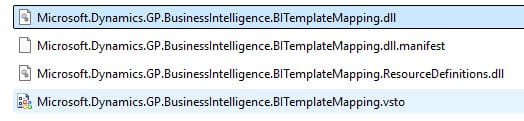
Microsoft wrote the Dynamics GP add-in as a visual studio tools for office add-in, hence the manifest and vsto filename extension you see in the folder. Those of you familiar with office add-ins writing will be familiar with these files.
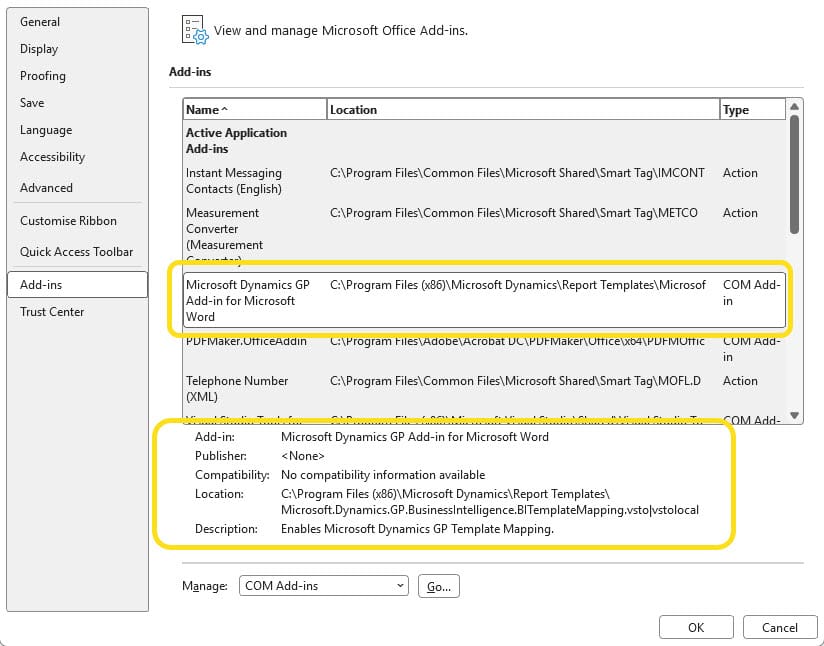
Checking within the word settings, I was trying to find the add in by clicking File>>Options>>Add-ins
however when I was looking it was absent, unlike the screen shot here which was after it was fixed.
Then attempted running the install silently so it would not prompt and freeze, doing so from my normal user, using the silent switch on an elevated command prompt from my standard user account.
"\GreatPlains\AdProd\BITemplateMapping\setup.exe" /s
This ran and claimed it installed, but it just felt like all these attempts were installing the add-in into my admin account and not the current user.
Luckily from vsto development I know that the add-in gets registered in the registry, under
HKEY_CURRENT_USER\Software\Microsoft\Office\Word\Addins
there was nothing under this registry key relating to Dynamics GP.
So I went and looked at the key for my admin user, that revealed what I would expect to see, the pointer to the vsto manifest file.


Exporting the keys from the admin user and importing them to the standard user felt like the way forward, after doing that I launched Word again.
Finally! -we have the button on the ribbon in Microsoft Word, just where it should be!

The add-in is showing up in the Word settings menu as shown earlier now too. So it was a fail to register the add-in that caused me the issue.
I don't know what has changed or why this was a struggle, I know we have a lot stricter permissions and protection running on machines that perhaps was interfering with the install. Or perhaps the new versions of Word no longer are compatible? Whatever the case it now works, that makes me happy.
Here is the content of the two registry files if you wish to use them.
Reg1.reg
Windows Registry Editor Version 5.00

[HKEY_CURRENT_USER\Software\Microsoft\Office\Word\Addins\Microsoft.Dynamics.GP.BusinessIntelligence.BITemplateMapping]
"Description"="Enables Microsoft Dynamics GP Template Mapping."
"FriendlyName"="Microsoft Dynamics GP Add-in for Microsoft Word"
"LoadBehavior"=dword:00000003
"Manifest"="C:\\Program Files (x86)\\Microsoft Dynamics\\Report Templates\\Microsoft.Dynamics.GP.BusinessIntelligence.BITemplateMapping.vsto|vstolocal"
Reg2.reg
Windows Registry Editor Version 5.00

[HKEY_CURRENT_USER\Software\Microsoft\Office\Word\AddinsData\Microsoft.Dynamics.GP.BusinessIntelligence.BITemplateMapping]
"LoadCount"=dword:00000001